

Saved description
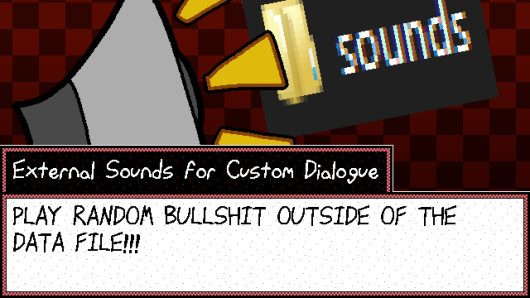
Play custom sounds for your custom guard mod! Be sure to place all custom sounds in the "sounds" folder and music inside the "songs" folder!
Originally came together in Tom Lizard's Next Step of Fame. Don't know what I was thinking not releasing this separately lol.
USAGE:
["_func", [["playSound", "soundTest.ogg", 10, false]]],
HOW TO USE:
Create a "sounds" folder in your custom guard folder if you haven't already. It's pretty much works the same way as playSound/playMusic, just the addition of adding ".ogg" to play local sounds. But I'll recap:
To play any of your sounds, ALWAYS include the ".ogg" at the end of the sound string so it can load sounds inside the "sounds" folder. For music (playMusic), insert it in the "songs" folder instead.
["_func", [["playMusic", "musBGMusic.ogg", 0.5]]],
To stop a custom sound, ALWAYS use "extSFX":
["_func", [["stopSound", "extSFX"]]],
If you use playMusic, use "extMusic" instead:
["_func", [["stopSound", "extMusic"]]],
Playing another custom sound without using stopSound will stop the previous custom sound to play the current one.
If you already have a modified data.win:
1. Open up UndertaleModTool
2. Open up the modded data.win file.
3. Navigate to Code > gml_GlobalScript_CustomGuardsPlus
4. Copy all the contents of the txt file of the same name "gml_GlobalScript_CustomGuardsPlus.txt" and paste it into the code.
5. Save the data.win file! (Backup your old modded file first though!)
6. That's it! Run the game and have fun!
Before installing
- Keep an untouched copy of the current game before replacing any file.
- Check the archive contents and version before combining it with another mod.
- Test one package at a time so a broken or conflicting change can be rolled back.
Snapshot activity
Views
2,621
Downloads
80
Likes
7
Comments
4
Available files
extsoundsforfb3-10.zip
Checksum: e5b65ac2c89a5b15b16619b8c27c9b32